
Claude Slash Commands: 10 Built-In Commands Every User Needs to Know
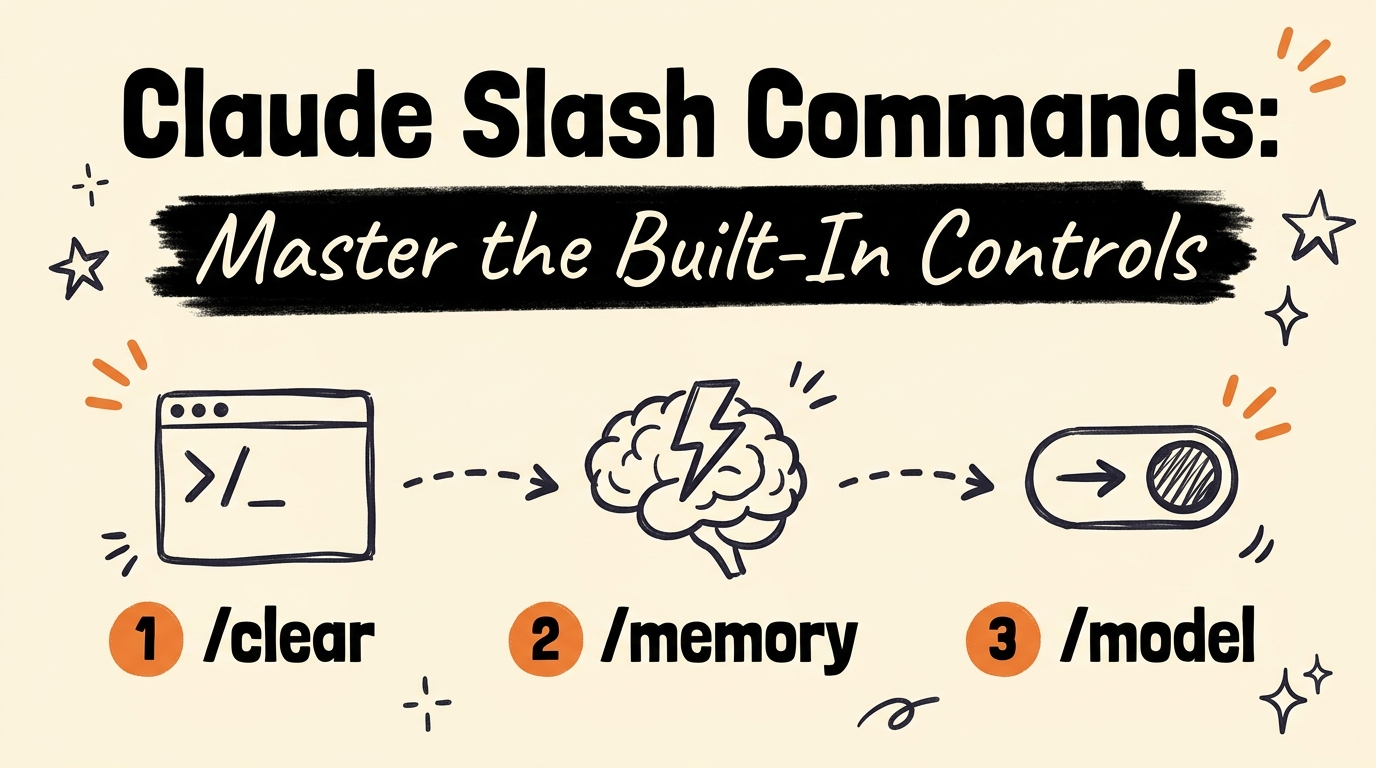
If you’ve been using Claude Code and typing out full instructions every single time, you’re working harder than you need to. Claude’s built-in slash commands are shortcuts that let you control your AI session, manage your context, switch models, and more — all without breaking your flow.
In this post, I’m breaking down the 6 Claude slash commands from the video — and if you want the full 10 (including 4 bonus commands that are essential when actually building things), grab the free cheat sheet below.
Get the Free Guide
Grab the complete 10 Slash Commands Cheat Sheet — all 10 commands, what each one does, when to use it, and pro tips for each.
Get the free Slash Commands Cheat Sheet →
What Are Claude Slash Commands?
Slash commands are built-in shortcuts that trigger specific actions inside Claude Code. Instead of describing what you want Claude to do in plain text, you type /command and Claude executes the action instantly.
They’re not prompts — they’re controls. Think of them as keyboard shortcuts for your AI session.
You don’t need to install anything or configure any files. These commands are built directly into Claude Code and available any time you open a session.
The 6 Claude Slash Commands From the Video
1. /help
Type /help to see every available command in one place. If you’re ever unsure what commands exist or what a command does, this is your starting point.
When to use it: First time using Claude Code, or whenever you want to discover commands you haven’t tried yet.
2. /clear
/clear wipes your current conversation history and starts fresh. Your files aren’t affected — only the conversation context is cleared.
When to use it: When a conversation has gone off track, you’ve hit context limits, or you want to start a new task without carrying over unrelated context.
3. /compact
/compact compresses your conversation history into a shorter summary, freeing up context space without losing the thread. You can also pass a focus instruction: /compact focus on the auth module to keep Claude’s attention on what matters.
When to use it: Long coding sessions where context is filling up but you don’t want to fully clear and lose the work done so far.
4. /memory
/memory opens your CLAUDE.md memory file directly in the editor. This is where Claude stores persistent instructions and context that carry across sessions.
When to use it: When you want to add or update project-specific instructions, preferences, or context that Claude should always remember — without typing it every time.
5. /model
/model lets you switch your active Claude model mid-session. You can check which model is currently running and swap to a different one (for example, switching from Sonnet to Opus for a complex reasoning task).
When to use it: When you want to use a more powerful model for one specific task without changing your default settings permanently.
6. /cost
/cost shows you the token usage and estimated cost for your current session. It’s a quick way to check how much context you’ve burned and how much your session has used.
When to use it: During long sessions to track usage before hitting limits, or if you’re on a budget and want to stay on top of costs.
The 4 Bonus Commands (In the Free Cheat Sheet)
The free cheat sheet includes 4 more slash commands that are especially powerful when you’re in build mode — including one that can save your project when things go sideways and one that turns Claude into a full code reviewer.
Grab the free Slash Commands Cheat Sheet →
How to Get the Most From Slash Commands
A few habits that compound quickly:
- Use
/compactbefore starting a new subtask in a long session — it keeps context clean without losing the thread. - Set a
/costcheckpoint habit — glance at it after long sessions so you’re never surprised. - Keep
/clearand/compactin your muscle memory — knowing when to reset vs. compress is the difference between a clean session and a confused one. - Grab the free cheat sheet below — all 10 commands (including 4 bonus builder commands) on one page, with pro tips for each.
Ready to Go Deeper?
Slash commands are one layer of Claude Code. The real power comes from combining them with Skills, Routines, and a properly configured CLAUDE.md — turning Claude from a chat tool into a fully autonomous workflow system.
If you want the full system — not just slash commands, but the complete Claude Code automation setup — that’s exactly what Vibe Coding Mastery covers. It’s a library of ready-to-deploy AI systems for creators and entrepreneurs, not another course to sit through.
And don’t forget to grab the free cheat sheet — all 10 commands, one page, ready to reference any time: