How to Create AI Carousel Videos with Claude Code (Higgsfield or Kie.ai)
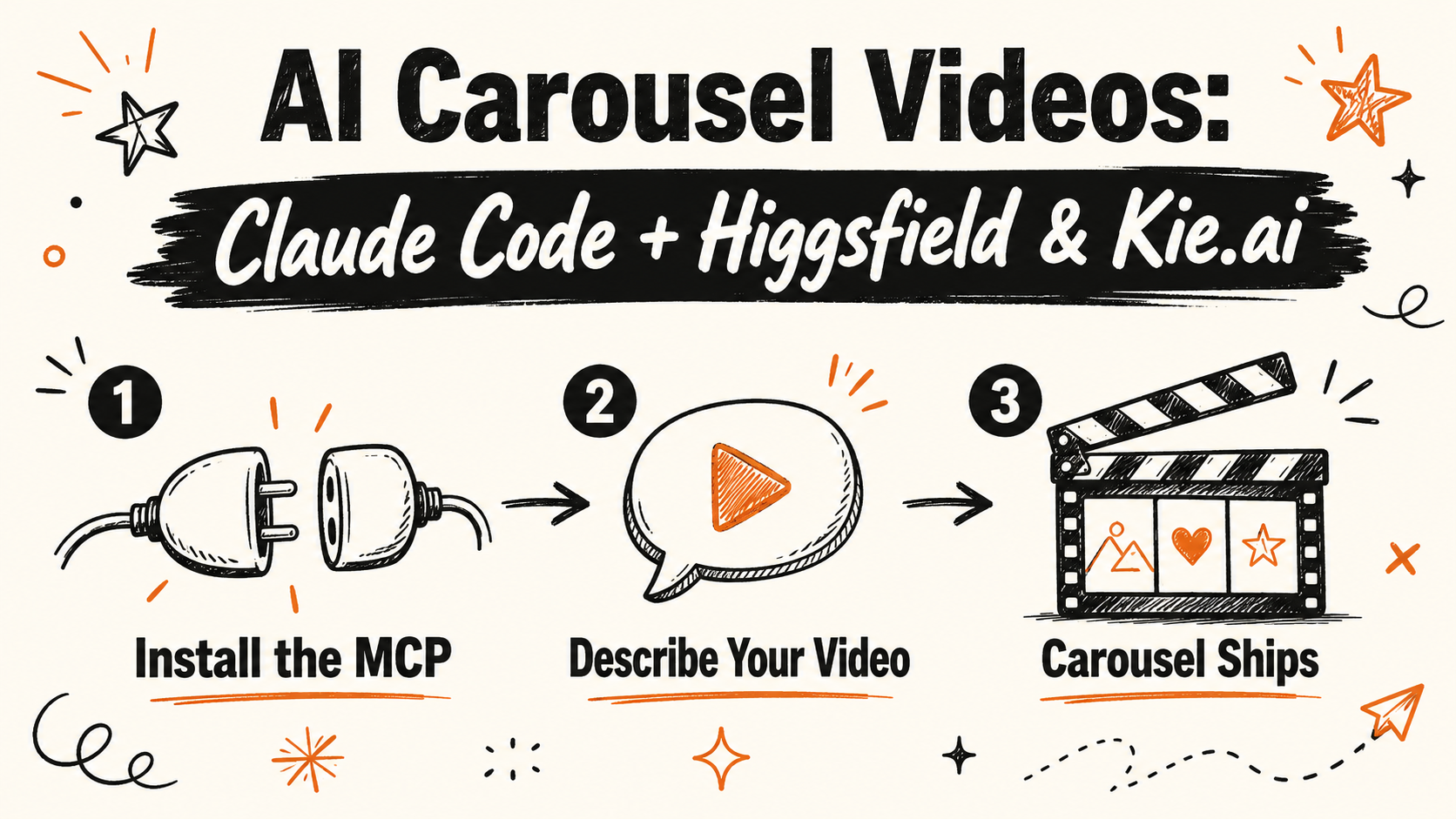
The cinematic carousel videos taking over Instagram and TikTok right now are not coming from production studios. Creators are generating them directly inside Claude Code using Higgsfield MCP or Kie.ai — 30+ AI video models, accessible with a single line of text, no app-switching required. This post shows you the exact setup and the prompts that work.
And if you’ve been watching $1M App Store apps and thinking “I could never build that” — stay to the end. Claude Code can reverse-engineer one from screenshots in minutes.
Get the Free Guide
The full prompt cheat sheet — Higgsfield MCP install, Kie.ai integration, and power prompts for carousel videos and app building.
Get the free Carousel Video Creator Prompt Guide →
Higgsfield MCP — AI Video Directly Inside Claude Code
Higgsfield launched its official MCP server in April 2026, giving Claude Code access to 30+ image and video generation models in a single hosted endpoint — Veo, Kling, Minimax Hailuo, Flux, and more. No API keys to manage. No dashboard to open. You describe what you need, Claude calls Higgsfield, and the clip lands in your project folder.
Install it in one terminal command:
1
claude mcp add --transport http --scope user higgsfield https://mcp.higgsfield.ai/mcp
Authenticate through your Higgsfield account when prompted. The free tier includes 150 credits per month.
Once it’s connected, use prompts like these inside a Claude Code session:
Talking-head carousel intro:
“Use Higgsfield to generate a cinematic carousel intro: dark studio background, purple rim lighting, slow push-in on subject, 5 seconds.”
B-roll clip:
“Use Higgsfield — aerial cityscape at night, neon reflections on wet pavement, slow cinematic pan, 6 seconds.”
Seamless loop for background:
“Use Higgsfield to animate this image into a cinemagraph: subtle fog drift, seamless loop, 4 seconds.”
You can chain multiple calls inside one Claude Code session to build out a full carousel sequence without leaving the terminal.
Kie.ai — The Lower-Cost Option for Higher Volume
If you need more generations per month without scaling your spend, Kie.ai is the go-to alternative. It offers APIs for video generation (Veo, Runway, Flux) at a lower cost per clip — same quality AI output, better economics for volume-based workflows.
Setup:
- Get your API key from the Kie.ai dashboard
- Add it to your
.envfile asKIE_API_KEY - Install the MCP server:
npx @felores/kie-ai-mcp-serveror add it via Claude Code MCP settings
The API base is https://api.kie.ai. All generation tasks are asynchronous — Claude polls for completion automatically.
Image-to-video prompts that work well:
“Animate this product photo — subtle zoom and lens flare, 3 seconds, seamless loop.”
“Turn this screenshot into a parallax video: foreground moves faster than background, 4 seconds.”
“Apply motion blur and handheld camera shake for a documentary-style feel, 5 seconds.”
A practical split that works well: use Kie.ai for bulk B-roll and Higgsfield for your hero carousel clips. You get the premium look where it counts and keep costs low everywhere else.
For the full prompt list for both tools, grab the free guide here →
Bonus: Reverse-Engineer Any $1M App Store App with Claude Code
Once your carousel is driving traffic, Claude Code can help you build the product that converts it. This workflow uses screenshots of any top-ranked App Store app to generate a complete build plan — no dev team, no prior coding experience.
How it works:
- Open the App Store, go to Top Charts in your niche, pick an app with 4.5+ stars and 10K+ reviews
- Screenshot the full user journey: onboarding, main dashboard, key features, paywall, settings
- Drop all screenshots into Claude Code and use this prompt:
“Analyze these screenshots of [App Name]. Give me: (1) the top 5 features to clone first, (2) the recommended tech stack, (3) a project folder structure, and (4) the first file to create.”
- Follow up with:
“Scaffold the full project using [tech stack Claude recommended]. Build [Feature 1] first with styling that matches the screenshots.”
- Paste the next screenshot after each feature is built:
“Now build this screen exactly as shown. Match the layout, spacing, and interactions.”
Before you start, add a CLAUDE.md file to your project with your brand colors and preferred component library. Claude applies them consistently across every screen — no re-prompting required.
What to Do With Your Clips After Generation
Once you have the AI video clips, the rest of the workflow moves fast:
- Drop into Captions.app or CapCut for captions and transitions
- Use Blotato (or Claude Code’s Blotato MCP) to schedule the carousel across Instagram, TikTok, and YouTube Shorts in one pass
- Save reusable clips to a B-roll library — AI-generated B-roll stays evergreen
Both Higgsfield and Kie.ai output files that slot directly into this workflow.
Start With the Prompt Guide
The free cheat sheet has the correct Higgsfield MCP install command, the Kie.ai integration steps, and the power prompts for both carousel videos and app reverse-engineering — formatted for quick reference.
Download the free Carousel Video Creator Prompt Guide →
Ready to go further? Vibe Coding Mastery covers the full system — skills, automations, and weekly live builds with Claude Code.